 Texter
Does the audio of my recording go to the AI tool?
The text, summaries, and speaker names of the notes you made readable are sent, along with details such as when they were created. Recordings and other original files are not.
Ask ChatGPT, Claude, or Muse about your meeting and lecture transcripts without copying and pasting them. This feature is called Texter MCP. You choose which notes can be read. This guide covers the setup and shows the answers we actually got.
You can ask AI tools such as ChatGPT and Claude about your Texter transcripts. The AI tool searches the notes you have made readable, reads the text, and answers from it. You don't need to copy and paste a note.
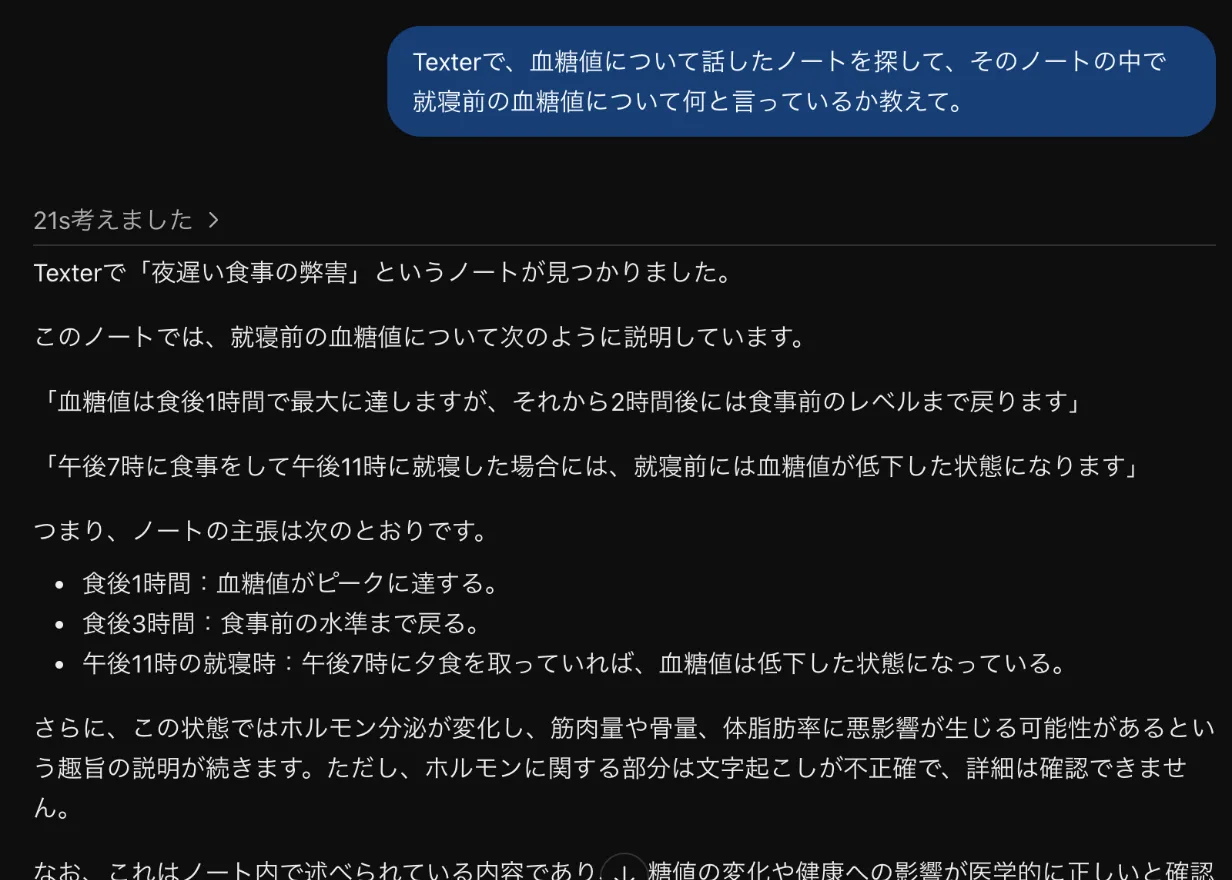
The screen above shows ChatGPT with one readable note, the transcript of a video (in Japanese). In the same state, we asked three things.
The AI tool searches the titles, text, and summaries of your readable notes by keyword. It can also narrow the search by recording date.
"Read the note from yesterday's weekly meeting and list the decisions and owners in a table."
Like the example above, this has the tool read a single note.
"Find my notes from meetings with Company A and summarize what they asked for."
The tool can search across several notes. It finds notes whose transcript contains the words, such as the company name. If nothing comes up, try different words.
"Find last month's notes about 'progress' and list the issues that keep coming up."
The tool searches by keyword within a date range, then reads the matching notes one by one.
On this page we tested with a single readable note. The requests that span several notes are written from the feature's specification. Check the answers against the original notes.
In Texter, open "Settings > Account > Texter MCP". The three steps are listed under "Getting started", and this page follows the same order.
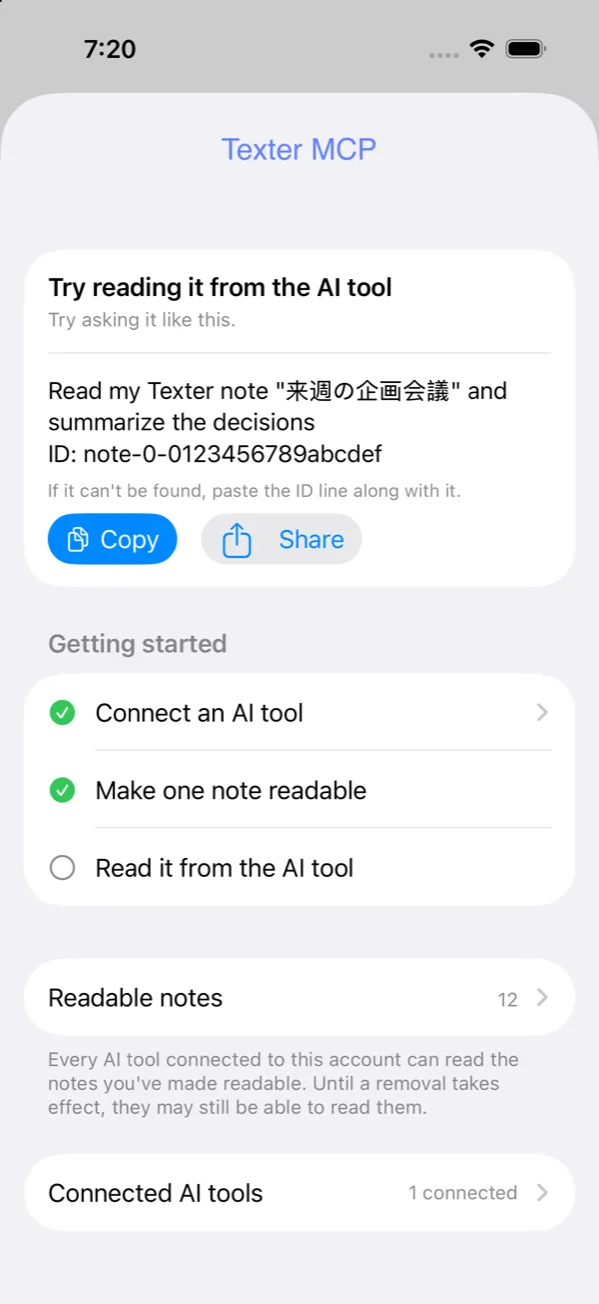
If you don't see "Texter MCP" in the app, update the app, wait a while, and open it again.
For every tool, the connection URL is the same.
https://mcp.texter.work/mcp
Jump to the tool you use: Claude, Claude Code, Codex, ChatGPT, or Muse.
Texter MCP is listed in Claude's connector directory, so you can add it without typing the URL.
You can also open the Texter MCP page on Claude directly.
If you can't add it from the directory, choose to add a custom connector in the connector settings and enter the server URL at the top of Step 1 (https://mcp.texter.work/mcp).
Depending on your plan or settings, the custom connector option may not appear. If it doesn't, check Claude's help.
Run this command in a terminal on your computer.
claude mcp add --transport http texter https://mcp.texter.work/mcp
Then open /mcp in Claude Code, select texter, and authenticate. The Texter allow screen opens in your browser; sign in and allow access.
Run these two commands in order in a terminal on your computer.
codex mcp add texter --url https://mcp.texter.work/mcp
codex mcp login texter
The Texter allow screen opens in your browser; sign in and allow access.
The labels below are from the Japanese interface and may read differently in yours.
Depending on your plan or your administrator's settings, this option may not appear. If it doesn't, check ChatGPT's help.
texter-meta-muse as the client ID and tap "Add"Muse may ask whether to allow sharing information with mcp.texter.work each time it uses the tool. If you choose to allow once, it asks every time, and it can time out while it waits. To avoid being asked every time, you can choose to always allow this site.
When you start connecting, Texter opens a screen asking whether to allow the connection.
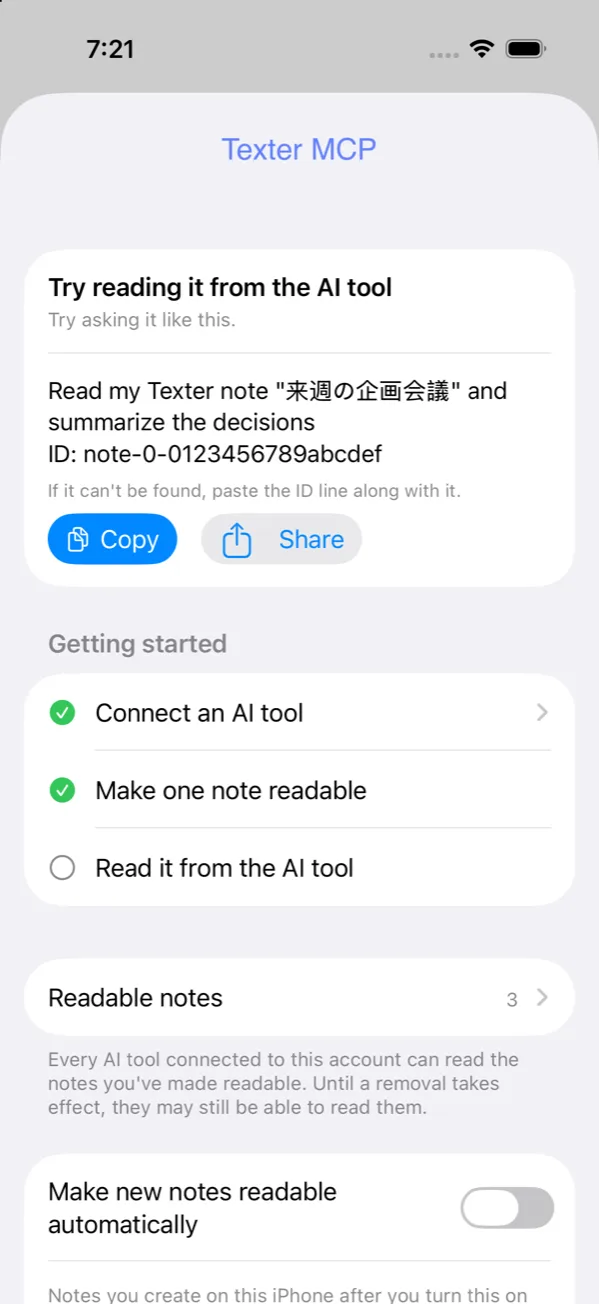
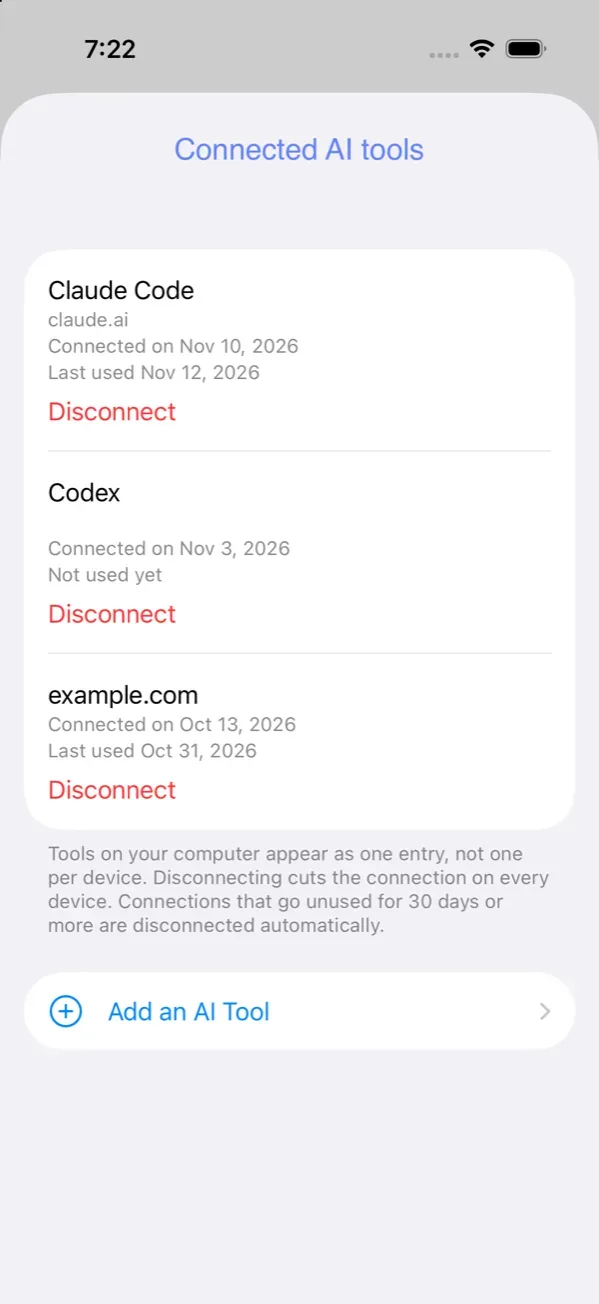
In Texter, open "Settings > Account > Texter MCP". The tool you connected appears under "Connected AI tools".
Connecting alone does not let the tool read anything. An AI tool can read only the notes you have made readable in Texter. Start with one.
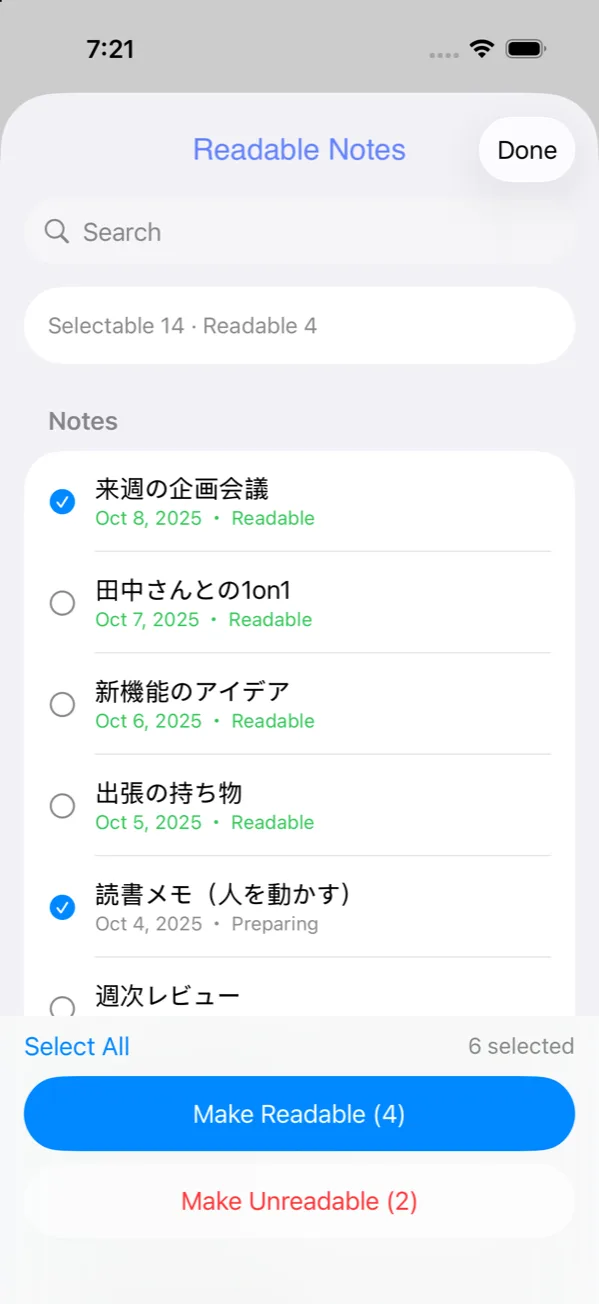
Open a note in Texter and choose "Make Readable with Texter MCP" from its menu. You can also choose notes from "Settings > Account > Texter MCP".
A confirmation screen explains the following. After reading it, tap "Agree and Make Readable".
How to select several notes at once is covered in the next section, "You choose what can be read".
When the status reads "Readable by connected tools", you're ready. If it says "Preparing", wait a moment.
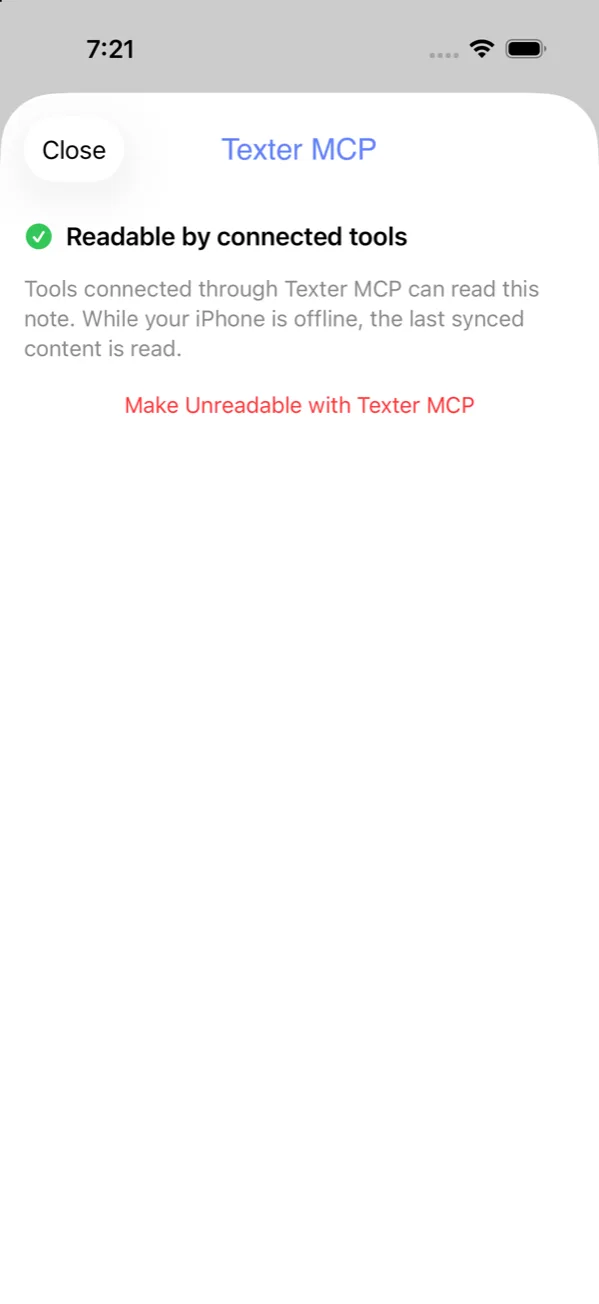
Try asking your AI tool something like this.
Search looks for notes that contain the words you use, so short words work best. Even if you ask in a full sentence, most AI tools break it into words. A word that is not in your notes returns no results. When we searched for "meeting" while no readable note contained that word, we got none. A different wording can find the note, so try other words.
If it can't find the note, also paste the ID line from the example prompt under "Try reading it from the AI tool" on the Texter MCP screen. The example is at the top of the image in Before you start.
What is sent and how it is stored is described under "Connecting External AI Tools (Texter MCP)" in the Privacy Policy.
If the connection also remains on the AI tool's side, remove it in that tool's settings. To stop a single note from being read, choose "Make Unreadable with Texter MCP" from the note's menu.
A disconnected tool can no longer read your notes from that moment. If you make individual notes unreadable instead, they may still be readable until the change takes effect.
The text, summaries, and speaker names of the notes you made readable are sent, along with details such as when they were created. Recordings and other original files are not.
No. Access is read-only, so it cannot edit or delete them.
AI tools can no longer read your notes. If you resume, they can read them again.
Your AI tool may ask you to reconnect. If it does, connect again with the same steps.
While your iPhone is offline, the last synced content is read.
No. Tools on your computer appear as one entry, not one per device.
Last verified 2026-11-13. The ChatGPT and Muse steps are from a session we ran on the real screens on November 12, 2026. Screens and steps can change as each tool updates. Claude, ChatGPT, Codex, and Muse are trademarks of their respective owners.
Texter is an iPhone app that transcribes and summarizes your recordings. Texter MCP is a Premium feature. It is not available with a plan received through Family Sharing, and it may also be unavailable with some other Premium subscriptions at this time. See Before you start for the conditions.